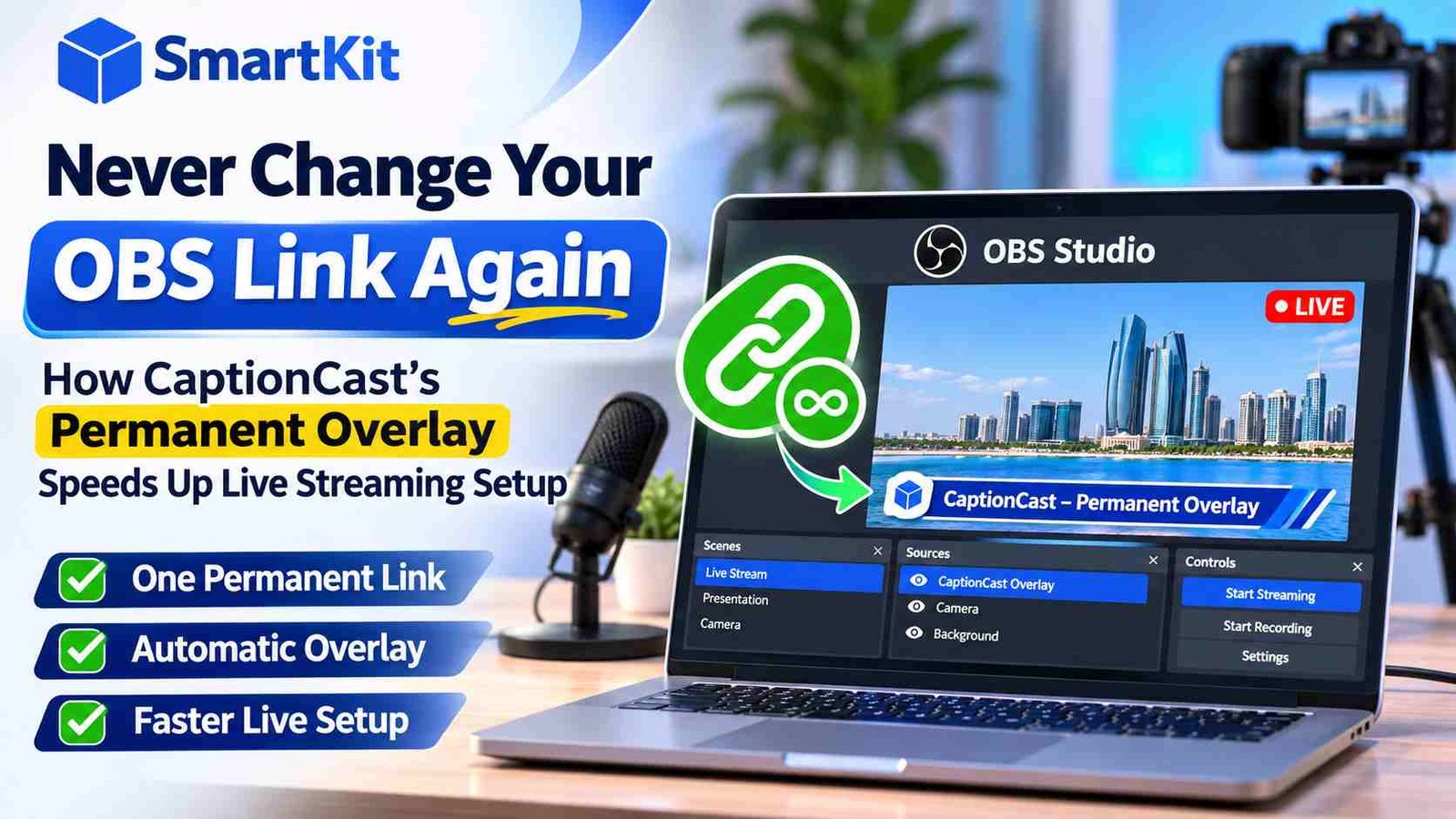
Never Change Your OBS Link Again: How CaptionCast's Permanent Overlay Speeds Up Live Streaming Setup
The Pre-Stream Friction Every Broadcaster Hates
For live content creators, the fifteen minutes leading up to going live are among the most stressful in production. Checking microphone gain levels, verifying scene transitions, testing bitrates, and posting stream announcements all compete for attention. In this frantic window, nothing is more frustrating than having to reconfigure browser sources in OBS Studio.
Traditional free captioning web tools generate a brand-new, randomized URL session key every single time a user opens the web page. If you close your browser tab or shut down your PC after Monday's broadcast, Wednesday's broadcast forces you to:
- Open the captioning website.
- Generate a new session link.
- Switch over to OBS Studio.
- Locate the Browser Source in your active scene hierarchy.
- Double-click the source properties, highlight the existing URL, and paste the newly generated link.
- Repeat the process across every scene that utilizes captions (e.g., Gameplay, Just Chatting, Screen Share, Intermission).
For streamers with multi-scene collections, this friction inevitably leads to broken overlays, blank captions, or delayed stream start times.
How CaptionCast Solves the Problem: The "Continue Session" Architecture
SmartKit CaptionCast eliminates this repetitive maintenance cycle through its Persistent Session Architecture. Instead of treating every browser visit as a disposable instance, CaptionCast links your session configuration directly to your account and local workstation.
When you return to CaptionCast at https://smartkit.cc/captioncast, the system detects your existing session state. Right at the top of the dashboard, you are greeted with a prominent "Previous Session Ready" panel. With a single click on Continue Session, your previous configuration—including custom fonts, line wrapping rules, box styles, auto-hide timers, and color palettes—is restored immediately.
The Magic of Permanent OBS Browser Source URLs
The core breakthrough of this workflow is URL immutability. When you generate a session in CaptionCast, that URL remains permanently linked to your session.
- Set Once: You paste
https://smartkit.cc/captioncast/overlay?session_id=YOUR_SESSION_IDinto OBS Studio on Day 1. - Keep Forever: You never touch OBS Studio's browser source properties again.
- Instant Activation: Whenever you sit down to stream, open CaptionCast, click Continue Session, and press Start Listening. Your words immediately transmit to the exact same overlay already active inside OBS Studio.
Step-by-Step Setup Guide
- Initial Setup in CaptionCast: Log in to SmartKit and open CaptionCast. If you already have a session, click Continue Session; otherwise, create a new session with your stream title.
- Add to OBS Studio: Click the Copy OBS Link button on your CaptionCast dashboard. Open OBS Studio, click the + icon in the Sources dock, select Browser, name it
Live Captions, and paste the link into the URL field. - Dimensions: Set the Width to
1920and Height to1080(or match your canvas resolution). Check Shutdown source when not visible to preserve GPU performance. - Daily Workflow: Moving forward, you never need to reopen OBS source settings. Simply launch CaptionCast, click Continue Session, and start speaking.